Part V: Execution
You now know the mathematics the test asks about. That is the hard part, and it is behind you. But knowing the mathematics and scoring at the top of the scale are not the same skill, and the gap between them is the subject of this part. The Digital SAT is not a worksheet you fill in at leisure; it is a timed, digital, adaptive instrument, and the people who reach the highest scores are the ones who operate that instrument deliberately, who let its tools work for them, who choose the fastest route to each answer, and who never let a question they could solve slip away to the clock or to a careless misread. Execution determines whether the mathematics you know is converted into correct answers within the time limit.
Two features of the digital test reshape strategy. The first is that the test is adaptive. The math section comes in two modules; your performance on the first determines the difficulty mix of the second.
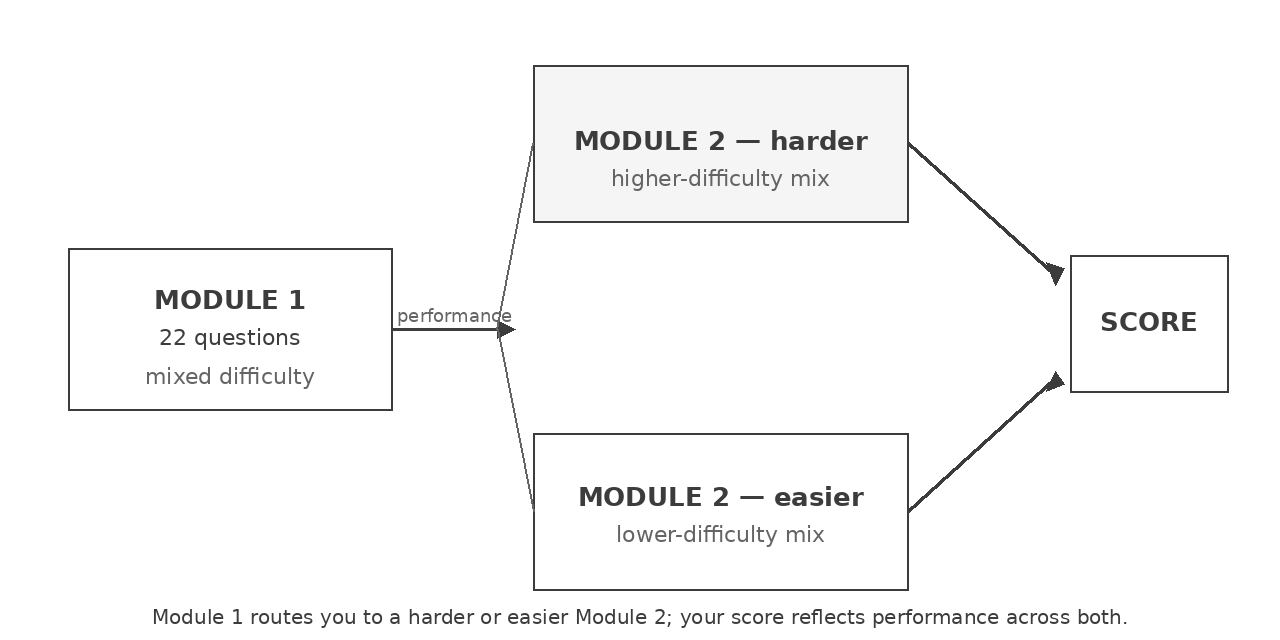
Figure 1. The adaptive format: your first-module performance routes you to a harder or easier second module, and your score reflects performance across both.
This changes how you treat the early questions. Two Module 1 items are unscored pretest questions, but they are not identified. Treat every item as operational; performance on the scored Module 1 items determines the Module 2 difficulty mix. Steady accuracy early is what shapes the difficulty, and ultimately the score, you end up with. The second reshaping feature is that the test hands you tools: a built-in Desmos graphing calculator available on every single question, and a reference sheet of geometry formulas always within reach. The strongest test-takers know when to reach for these tools and when hand reasoning is faster, letting the calculator graph, solve, and check exactly where doing so saves time and risk.
Everything in this part flows from a single conviction, the same one that has shaped the whole book: execution is not a grab-bag of unrelated tricks. It is a few principles, each doing the work of many tips.
Core test-execution principles
Use the tools the test gives you: the Desmos calculator and the reference sheet are part of the test, not a crutch. Consider them immediately on every question, then use them when they remove meaningful work rather than reaching for them out of habit.
Take the cheapest path to the answer. Solving forward is one option among several, and often the slowest; graphing, working backward from the choices, and substituting numbers are frequently faster and safer.
Spend time where it pays, and never leave a blank. There is no penalty for a wrong answer, so every question gets an answer, and your minutes go to the questions that reward them.
Answer exactly what was asked. The most common avoidable error is solving correctly, then giving the wrong quantity.
Here is the shape of what is ahead in this part: Desmos for equations, systems, functions, and data (this unit); the two adaptive Math modules; back-solving and strategic test values; student-produced responses in Bluebook; and pacing two 35-minute Math modules. None of this adds to what you must know; it makes sure that everything you already know survives the trip from your head to the screen.
Desmos for equations, systems, functions, and data
A full graphing calculator sits on the screen for every math question. Its single most valuable habit is this: when an equation resists algebra, graph it, and let the picture hand you the answer.
A currency note: the specific commands, menus, and interface details described in this lesson reflect the Desmos calculator as embedded in Bluebook at the time of writing. Bluebook periodically updates its embedded calculator, so confirm any named command or interface step still matches what you see on your own screen before relying on it under timed conditions. Beginning in Fall 2026, Bluebook also allows the embedded Math calculator to be resized.
Match the requested quantity to a Desmos graph feature
The Digital SAT hands you a complete Desmos graphing calculator, open on every question of the math section, not tucked away, not optional, but one click from whatever you are reading. Most people treat it as a faster way to multiply, and that undersells it enormously. It is a problem-solving engine, and once you learn to reach for it, the set of questions that count as hard quietly shrinks.
The idea that governs everything here is worth saying once and holding onto: a graph turns an equation into a picture, and the answer is almost always a feature of that picture: a place where a curve crosses an axis, where two curves meet, where a parabola turns around. Algebra asks you to push symbols around correctly, in order, under time pressure; a graph simply shows you the result. The moves in this lesson are few, and each one trades a stretch of error-prone hand calculation for a glance. Learn these graphing routes well enough to recognize when they reduce the number of algebraic steps.
Use Desmos expressions, tables, points, and graph controls
Open the calculator from the button at the top of the screen and it splits into two regions. On the left is the expression list, a stack of numbered rows where you type. On the right is the graph, where everything you type appears at once. Type into a row and the picture updates as you go; there is no enter key, no plot button, no waiting.
A few controls are worth knowing before you need them. The plus and minus buttons, or two fingers on a trackpad, zoom in and out; a settings icon opens the window and label options; and a keypad button brings up the symbols that are awkward to type. You will rarely need more than this. The interface rewards a few unhurried minutes before test day (type a parabola, drag the graph, zoom, click a point) so that during the test your attention sits on the question, not the tool.
Switch between graphing and plain arithmetic
Not every question needs a graph. Typing a numerical expression into an empty row, with no x or y in it, skips the graph entirely and simply evaluates: type 17 × 23 - 4^3 and Desmos returns 327 with no picture to read at all. This plain-arithmetic use is the same calculator, just aimed at a number instead of a curve, and it is the faster route whenever the question only asks for a computed value rather than a feature of a relationship.
Reaching for the graphing view out of habit, on a question that is really just arithmetic, adds a picture with nothing to click. Deciding which mode a question actually calls for, a number or a feature, is worth the half-second it takes.
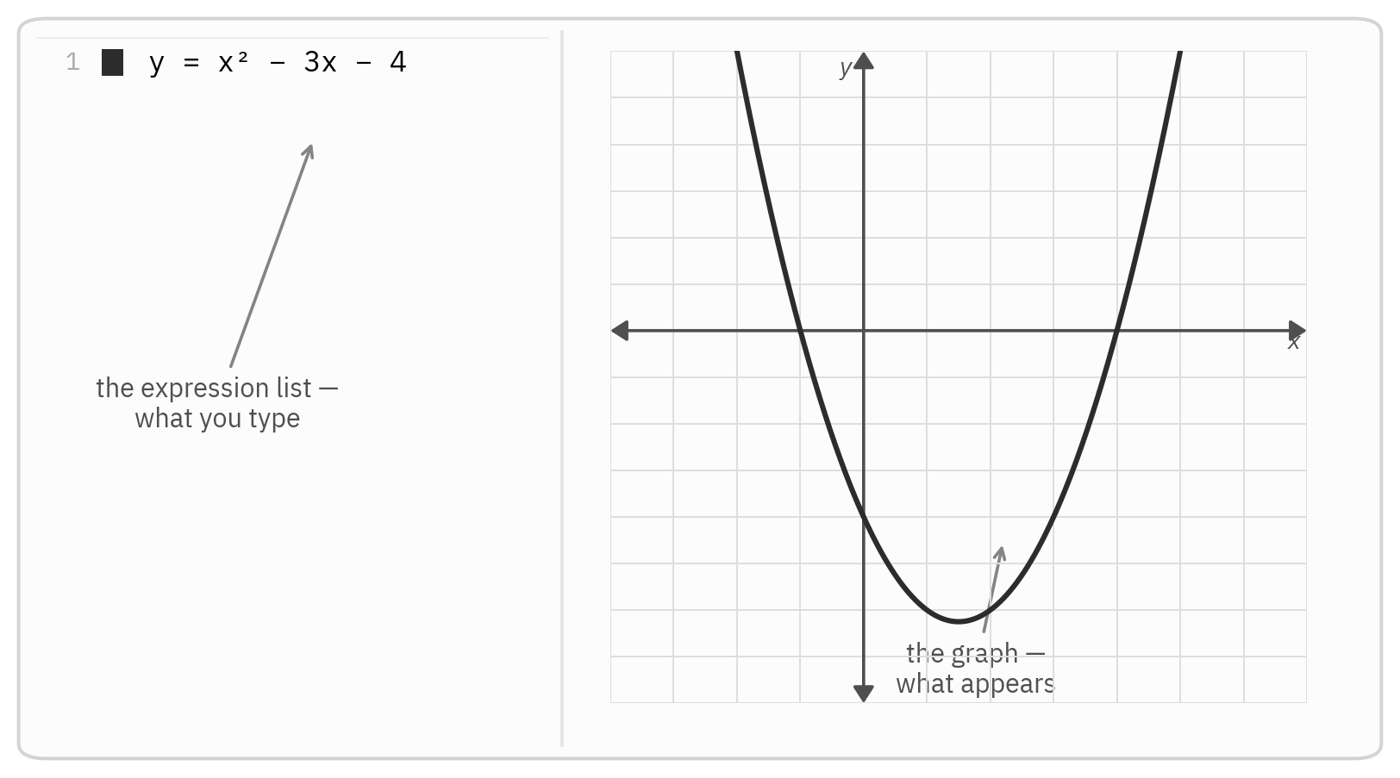
Figure 2. Two regions: the expression list, where you type, and the graph, where what you type appears at once.
Enter equations and expressions in Desmos without transcription errors
The calculator only helps at the speed you can type into it, and a handful of keystrokes cause nearly all the fumbling. Learn these six and the rest follows.
An exponent comes from the caret: typing x^2 raises x to the second power, and the cursor stays up in the exponent until you press the right-arrow to step back down to the baseline. That one arrow is the most useful key in Desmos: without it, everything you type next rides up in the exponent with the 2.
A fraction comes from the slash: typing 3/4 builds a stacked fraction, and again the right-arrow walks you out of the denominator when you are done. A square root comes from typing sqrt, which opens a radical you fill in. The symbol π is just pi, the absolute value is abs(x) or a pair of vertical bars, and a subscript, useful for data, comes from the underscore, as in x_1.
Two conveniences save keystrokes. Multiplication is implicit, so 2x and 3(x + 1) work with no times sign. And every opening parenthesis closes itself, so you can type straight through. None of this is deep; it is finger memory, and ten minutes of practice buys it for good.

Figure 3. Six keystrokes do most of the work. The right-arrow steps you out of an exponent or a fraction.
Read zeros, intersections, and extrema from a Desmos graph
Here is the habit the whole lesson is built on. Type an equation, and rather than asking how do I solve this, ask which feature of this picture is the answer. The crossings of the x-axis, the meeting points of two curves, the high or low point of a parabola: these are the answers to most algebra questions, sitting in plain view.
Desmos labels the feature numerically, so you do not have to estimate it from the grid. Wherever something interesting happens (a curve meets an axis, two curves cross, a parabola turns) a faint gray dot appears. Click it, and Desmos prints the coordinates. Treat that printed number as a numerical result, often a decimal approximation, not automatically an exact form; when a question needs an exact radical or fraction, preserve that exact form algebraically rather than typing the decimal Desmos shows. The judgment left is twofold: which of the marked points answers the question, and whether the displayed number is itself the answer or only a numerical stand-in for it.
Solve equations with zeros or intersections in Desmos
To solve a one-variable equation you have two reliable routes, and either one turns the work into a glance.
The first route: move everything to one side so the equation reads expression , then graph that expression. The solutions are the zeros, the spots where the curve crosses the x-axis, because a value of makes the expression zero exactly when the graph sits on the axis there. Click each crossing and read the x-coordinate.
The second route is often faster because it skips the rearranging: graph the two sides as their own curves, left side and right side, and find where they intersect. Wherever the two curves meet, the left and right sides are equal, which is what solving the equation means. Pick whichever route fits the equation in front of you.
Worked example: solve a messy equation by graphing. Solve . By hand this calls for the quadratic formula with a fractional coefficient: slow, and easy to slip. By graph it is immediate. Type and look at where the parabola meets the x-axis.
Desmos marks the crossings; click them and read and . Those are the solutions, found without a line of algebra. The decimal coefficient that complicates the formula is invisible to the graph; it just bends the curve.
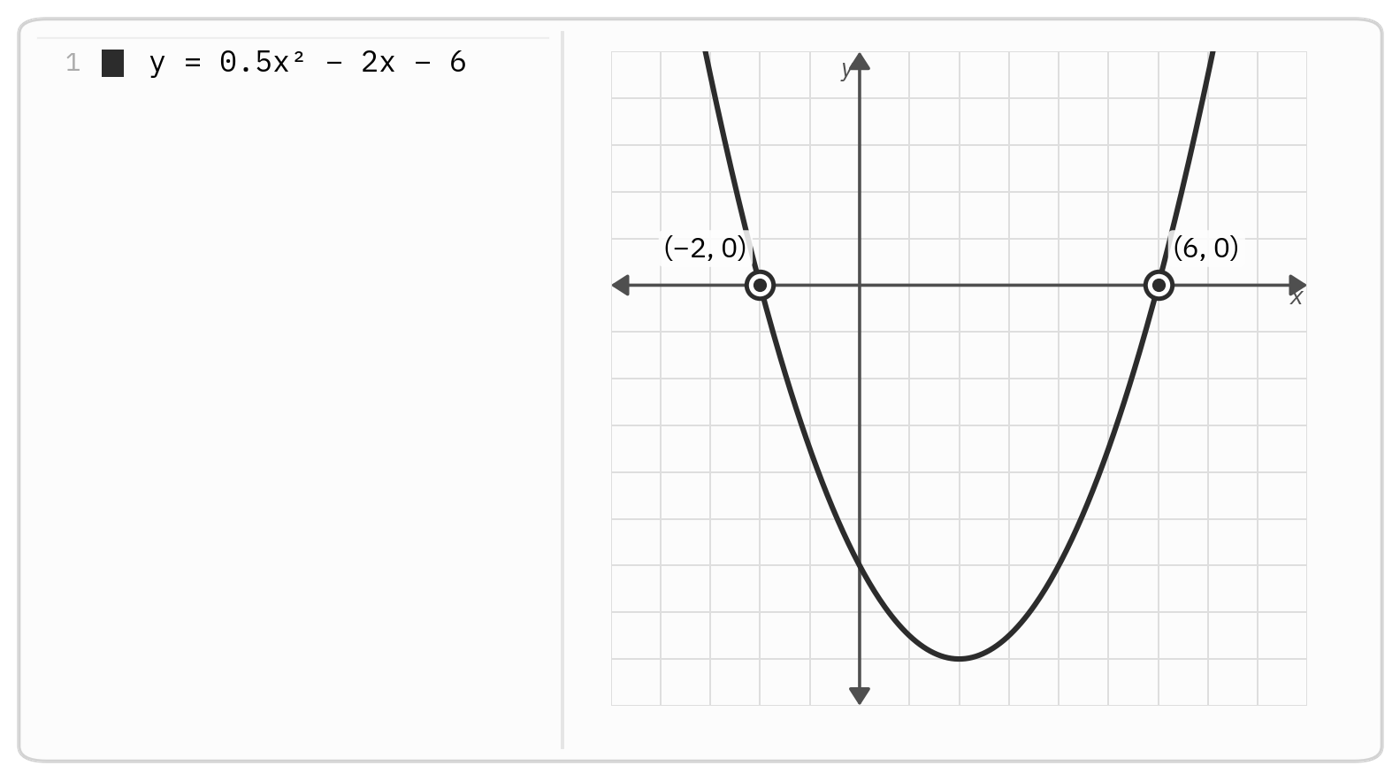
Figure 4. To solve expression = 0, graph it and read the x-axis crossings. Here the solutions are x = -2 and x = 6.
Worked example: solve by meeting in the middle. Solve . Rather than collect everything on one side, graph the two sides as they stand: and .
The parabola and the line cross at two points; click them to read and . The solutions are the x-values there, and .
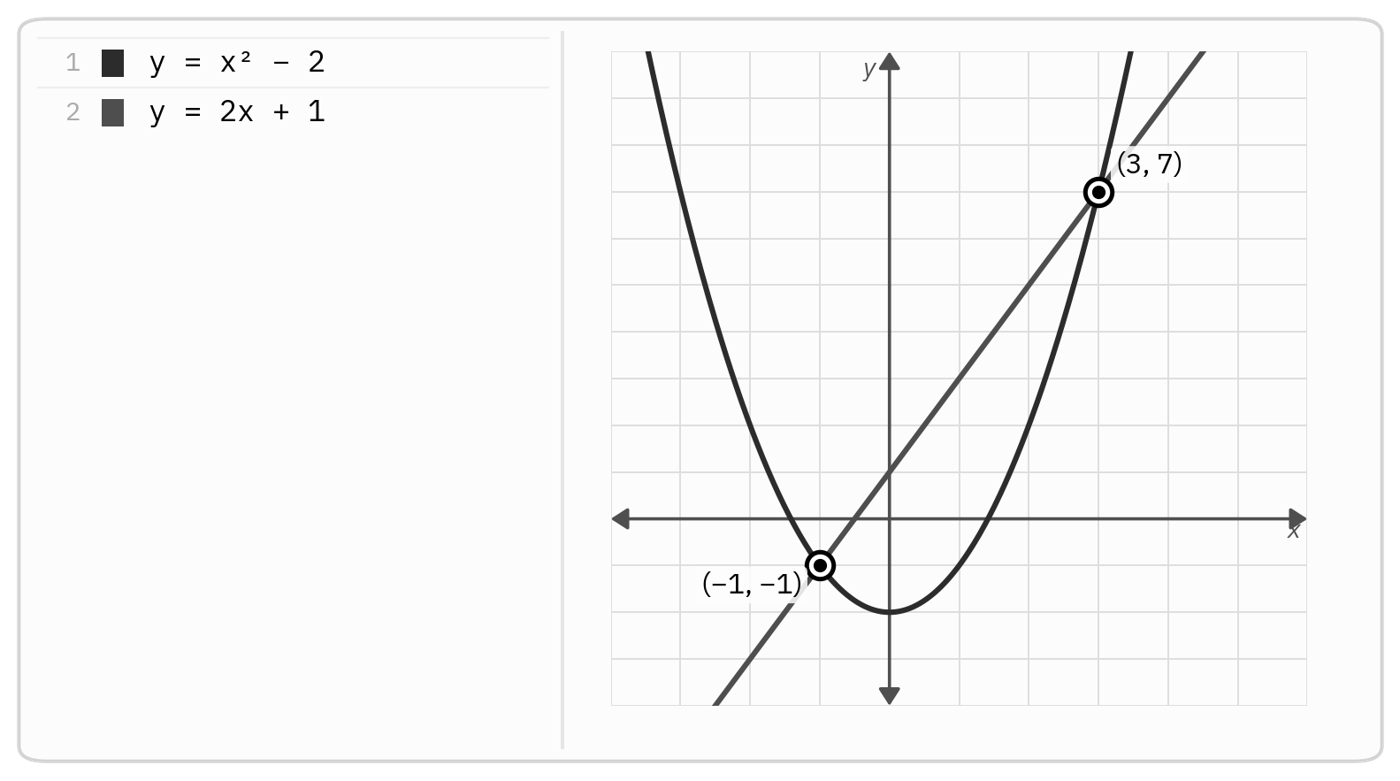
Figure 5. Graph each side as its own curve; the solutions are the x-values where the curves meet.
Count real solutions from graph intersections
Some questions never ask you to solve anything; they ask how many solutions there are. The graph answers this faster than any algebra. Graph the equation as expression and count how many times the curve touches the x-axis: each crossing is one real solution. A parabola can cross twice, touch once, or clear the axis entirely, and the picture tells you which at a glance: the same fact the discriminant carries, read straight off the curve.
Worked example: how many solutions? How many real solutions does have? Graph . The parabola floats entirely above the x-axis (its lowest point, the vertex , never reaches it) so the curve crosses zero times. The equation has no real solutions.
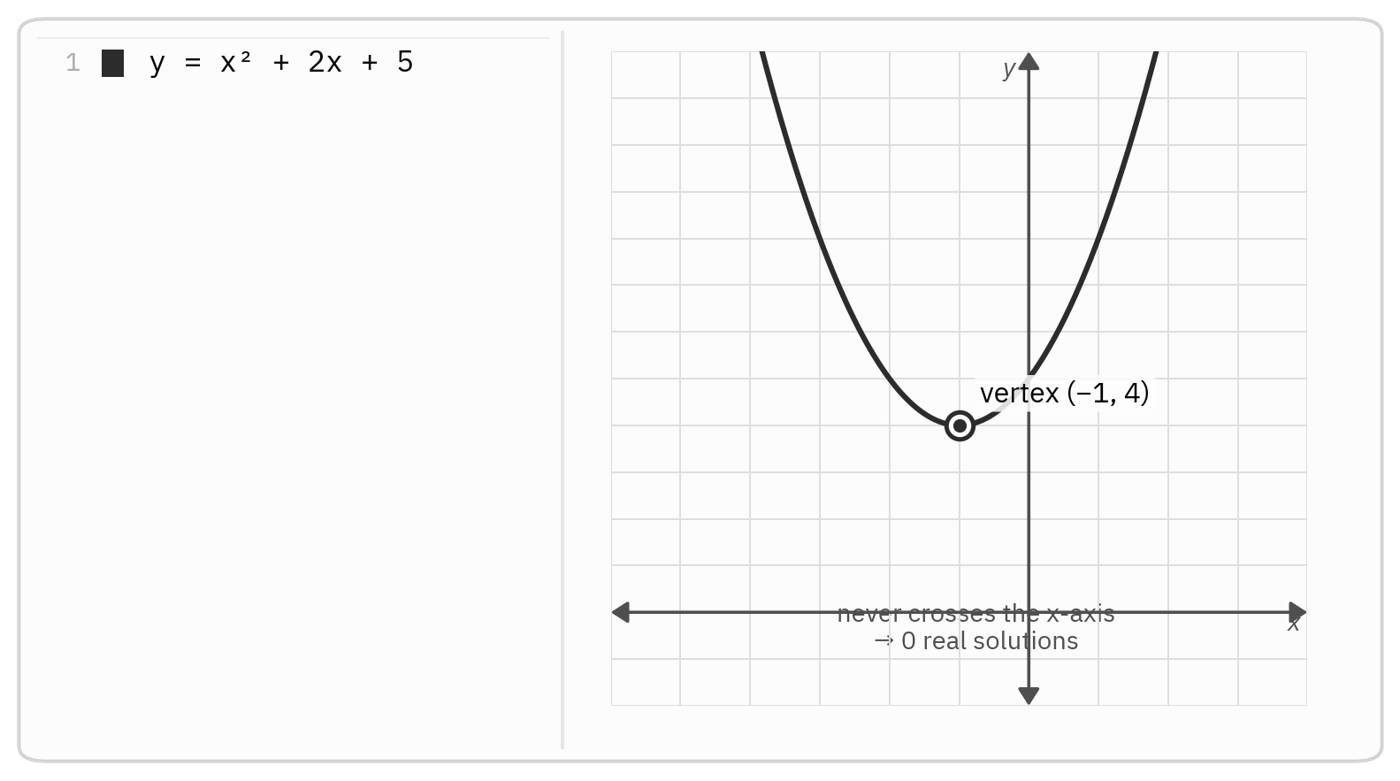
Figure 6. A parabola that clears the x-axis has no real solutions, zero crossings.
Solve systems by graphing intersections
A system of two equations is the same idea with two graphs. Each equation is a curve; a solution is a pair that lies on both at once, which is precisely a point where the curves intersect. So graph both and click where they meet: Desmos hands you the and that solve the system. This works whether the equations are lines, parabolas, or a mix, and it sidesteps every substitution and elimination step that invites an arithmetic slip.
Graph a circle equation directly, without solving for y
A circle's equation does not need to be rearranged before Desmos can graph it. Type exactly as it is given, coordinates and all, and Desmos draws the full circle immediately. There is no need to split it into upper and lower halves the way solving for by hand would require.
A circle has equation . Where does it cross the x-axis? Type the equation exactly as written; Desmos plots the circle at once. Reading where it crosses the x-axis, the marked points give and , the same answer completing the square by hand would reach through .
The same direct entry works for a line crossing that circle: type the line's equation on a second row, and the marked intersection points are read the same way as any other system.
Worked example: solve a system by graphing. Solve and . Type both. The two lines cross once, and clicking the point gives , so and . If the question asks only for , read it straight off the intersection.
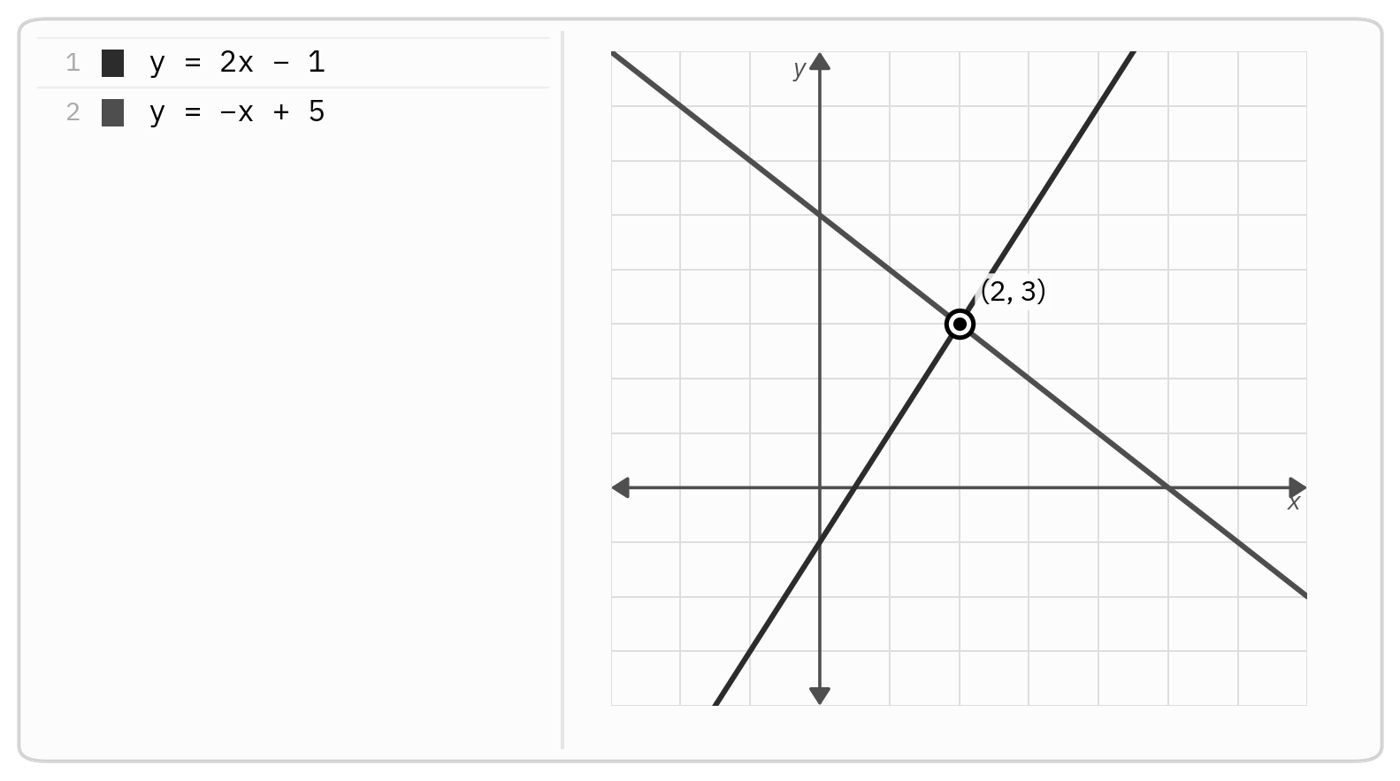
Figure 7. A system's solution is the point where the graphs meet. These lines cross at (2, 3).
Read a function's vertex, zeros, and intercepts in Desmos
Many questions ask not for a solution but for a feature of a function: its maximum or minimum, its vertex, a zero, an intercept. Every one of these is a labeled point waiting to be clicked. The vertex of a parabola is its turning point, and it gives the maximum or minimum value directly; the zeros are the x-intercepts; the y-intercept is where the curve meets the y-axis. No vertex formula, no completing the square; graph, click, read.
Worked example: find a maximum. Find the maximum value of . Graph it. The leading coefficient is negative, so the parabola opens downward and its vertex is the highest point on the curve.
Click it: Desmos labels . The maximum value is the y-coordinate, 9, and if the question had asked where the maximum occurs, that is the x-coordinate, 2. Reading the right coordinate is the whole task.
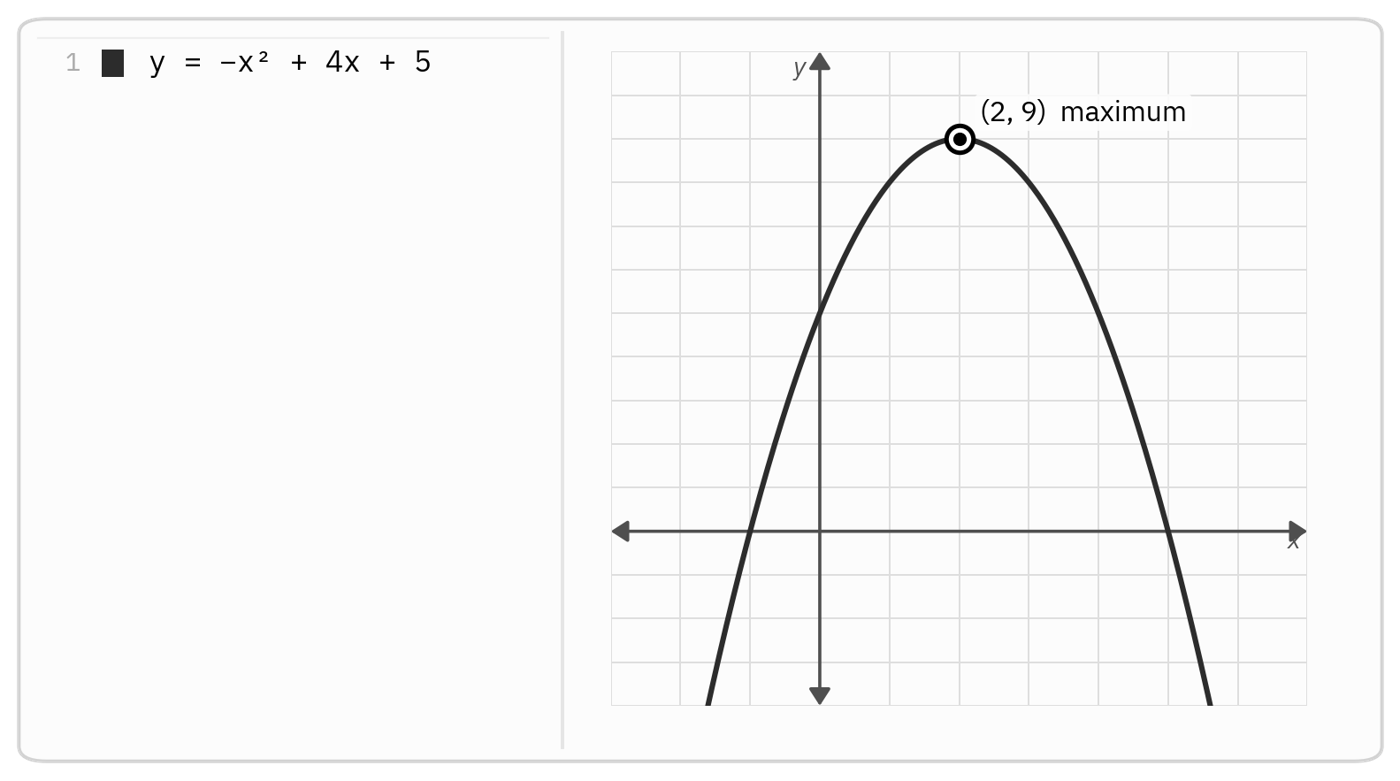
Figure 8. Click a parabola's turning point and Desmos names it. This vertex, (2, 9), is the maximum.
Define and evaluate functions in Desmos
When a function will come up more than once, name it. Type on its own row, and from then on behaves like a function everywhere else: type on a new row and Desmos prints the value; graph and the curve appears; build a table and read off many outputs at once.
That table is the quiet workhorse. Start a table, put your inputs in the x column, and a second column fills with calculator-evaluated outputs, so repeated substitutions do not need to be done by hand. It turns find , or which input gives an output of 40, into reading a row. For any question that hands you a function and asks for values, defining it once and tabling it is faster and surer than substituting by hand each time.
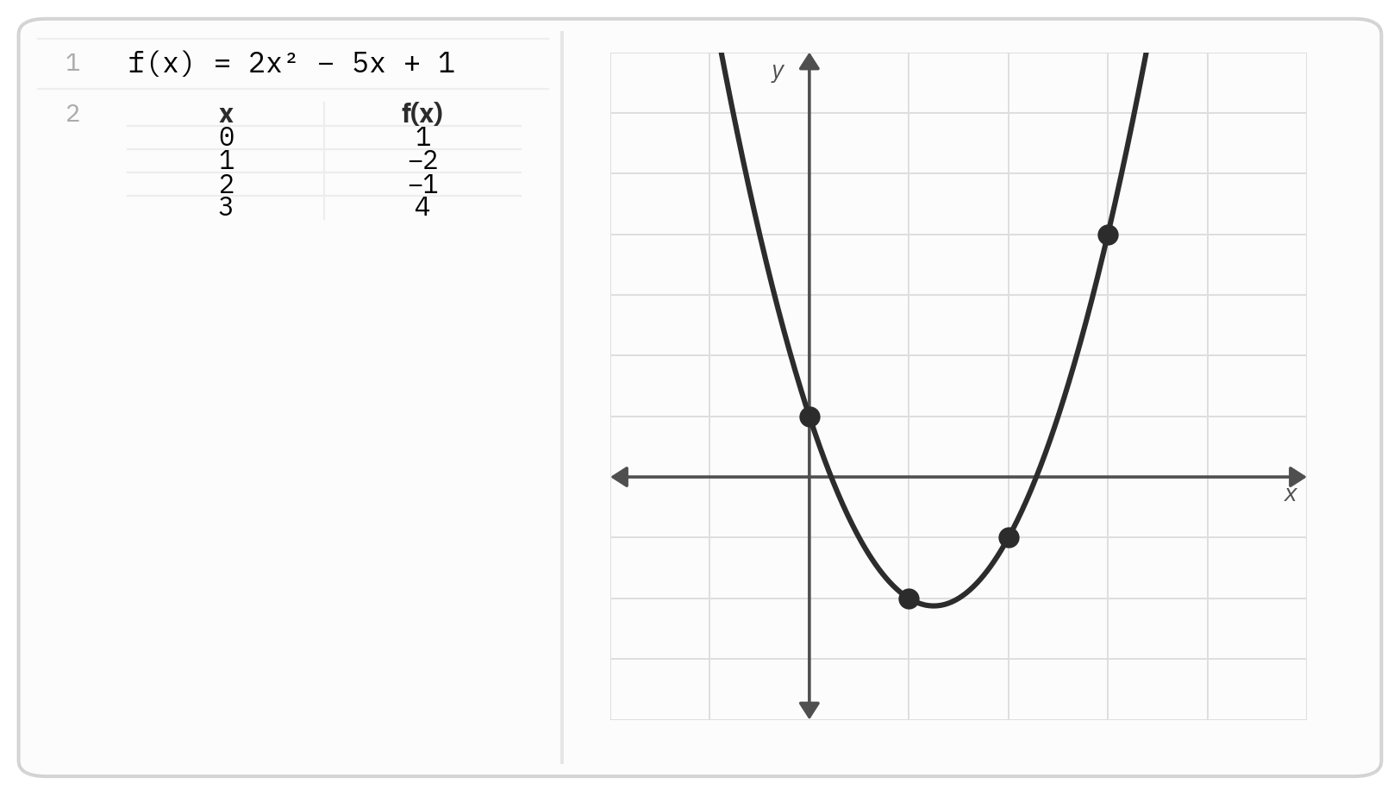
Figure 9. Define f once, then a table reads off many outputs at once, no arithmetic by hand.
Use sliders to explore how a parameter changes the graph
Some questions hold a constant you do not yet know: for what value of does the line pass through this point, for what value of does the equation have exactly one solution. Algebra answers these exactly, and it remains the reliable route to the exact value. A slider lets you watch the relationship change first, so the algebra that follows confirms something you already expect rather than something abstract.
Type an equation that contains a letter other than or , say , and Desmos notices the stray and offers to add a slider. Accept, and a little track with a movable knob appears. Drag it, and the graph responds live. Now you simply move and watch the picture respond, noticing roughly where the condition (passing through the point, just touching the axis) seems to hold. Do not stop there: a slider moves in discrete steps and can miss the exact value, especially for a tangency condition where “just touching” and “barely crossing twice” look almost identical. Use the slider's neighborhood as a starting guess, then confirm the exact value algebraically, or by checking a discriminant, intersection count, or regression as the situation calls for.
Worked example: find the constant with a slider. The line passes through . For what value of ? Type , add a slider for , and drag. As climbs, the line steepens; at it runs exactly through , and the slider suggests the value. Confirm it exactly by hand: gives the same , matching what the slider showed. The algebra is what guarantees the answer; the slider only located it visually first.
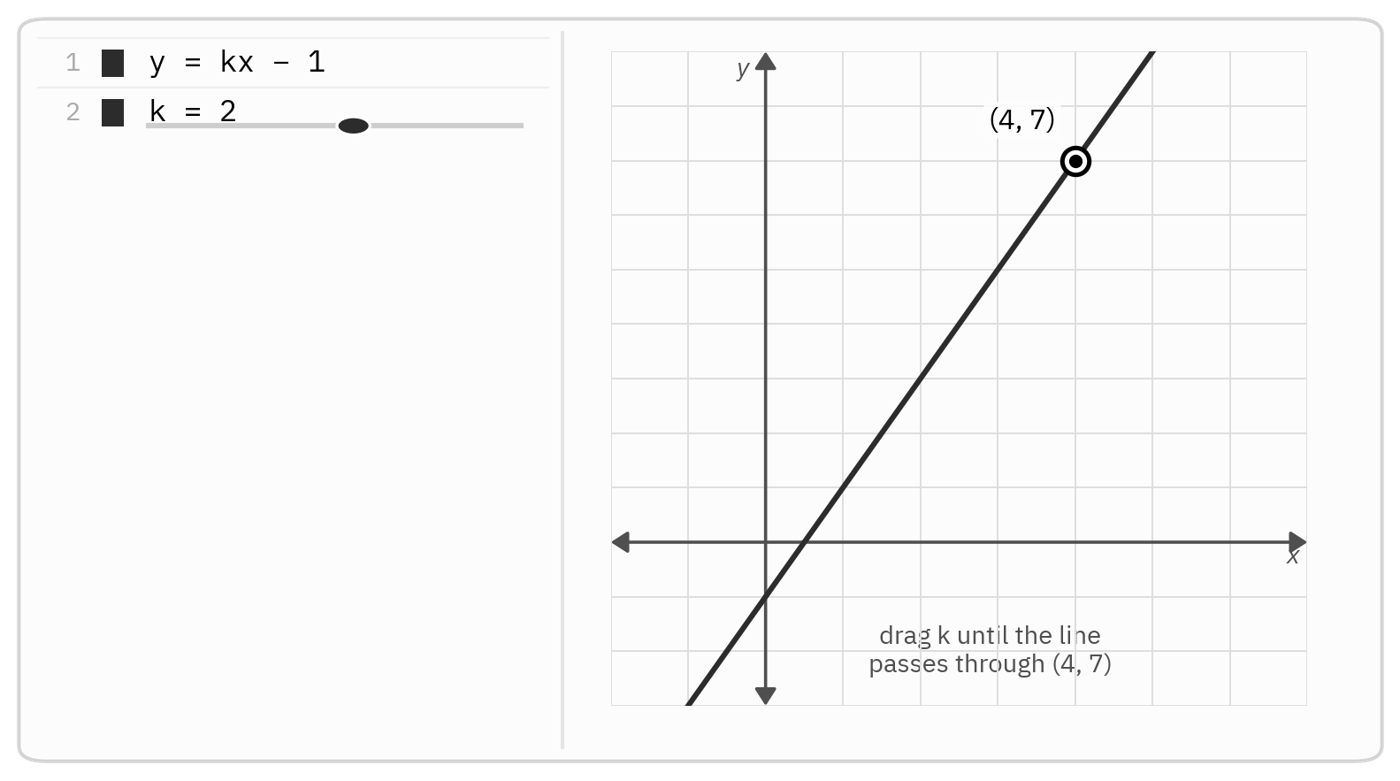
Figure 10. A slider turns an unknown constant into a knob. Drag k until the line meets the condition.
See a transformation by graphing the original and the shifted version together
A transformation rule (a shift, a stretch, a reflection) is easiest to trust after watching it happen rather than only reasoning through the sign convention. Type the original function on one row and the transformed version on the next; Desmos draws both curves at once, and the move the rule describes is visible directly.
Type and, on the next row, . The second parabola is the first slid right 3 and up 2, exactly what the rule predicts, but now the vertex's move from to is something you can see rather than only calculate. This graph-first check is most useful exactly when a transformation's direction, especially a horizontal shift's reversed sign, is the part of the question worth double-checking.
Use Desmos tables, statistics, and regression
The data questions in Problem-Solving and Data Analysis have their own Desmos shortcuts, and they are not widely known. A list is written in brackets, such as L = [4, 7, 7, 9, 13]. Desmos can evaluate mean(L), median(L), and total(L). For standard deviation, match the command to the quantity requested: stdev(L) is the sample standard deviation and stdevp(L) is the population standard deviation. A question asking for the mean or median of a list becomes one short line.
The deeper tool is regression, the line or curve of best fit. Enter the data as a table with columns and , then type a model with a tilde: y_1 ~ a x_1 + b asks Desmos for the best-fitting line, and it reports the slope and intercept . Swap in a x_1^2 + b x_1 + c for a parabola, or a b^x for exponential growth. Where the test gives you a scatter of points and asks for the best-fit slope, a predicted value, or the line's equation, this hands it over in two rows.
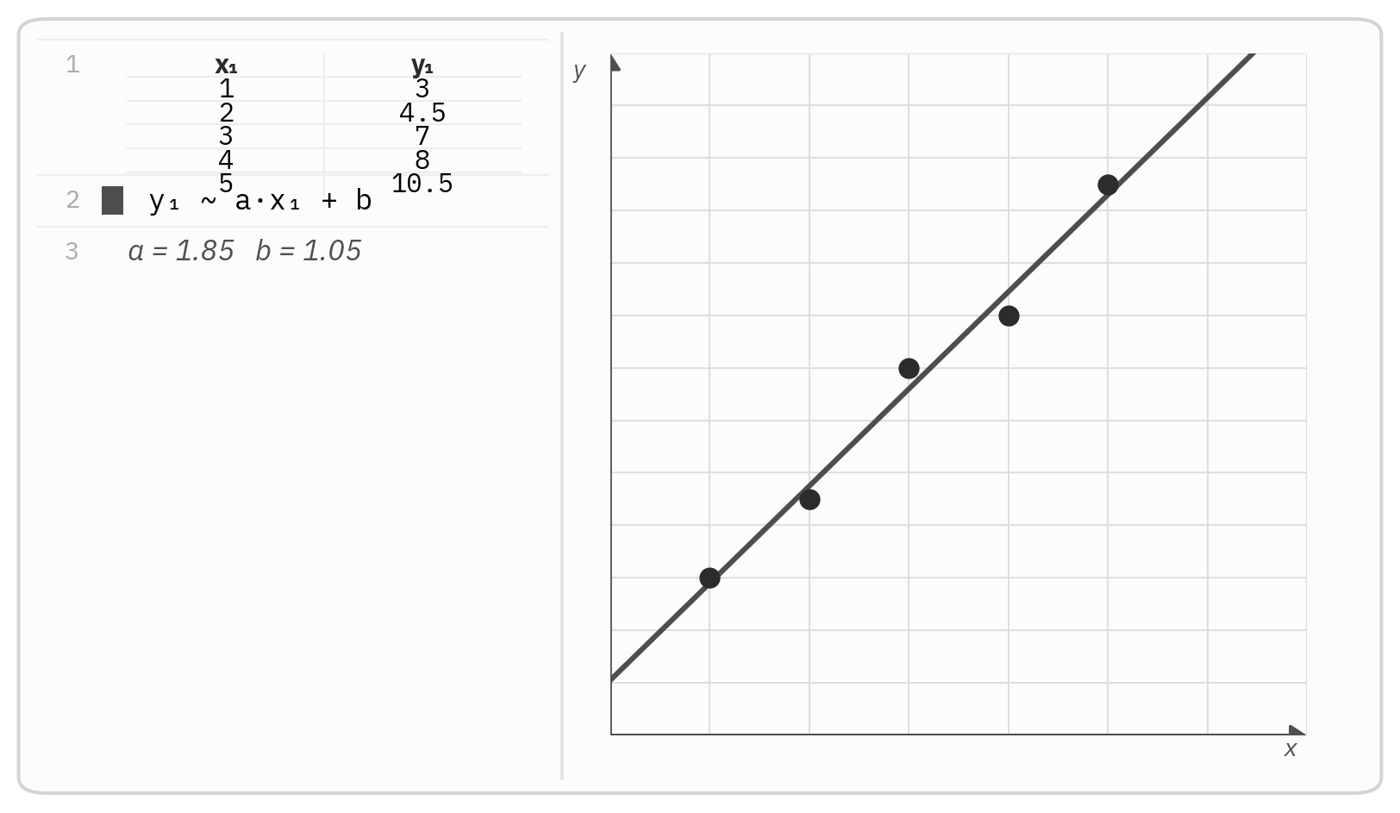
Figure 11. Enter data as a table, fit it with y1 ~ a x1 + b, and read the slope and intercept.
Use Desmos as a targeted verification tool
Every tool here assumes you can see the feature you need, and sometimes you cannot: the vertex sits below the window, or two curves cross far off to the right. When a graph looks empty or cut off, zoom out: the minus button, or pinching the trackpad, pulls back until the whole shape is in view, and you can zoom back in once you know where to look. You can also restrict a graph to the part you care about by adding a domain in curly braces: typing y = x^2 {0 < x < 5} draws only that slice. The default window is usually fine, but knowing how to widen it keeps a hidden answer from looking like no answer.
Choose hand work when graphing adds more steps than it removes
The calculator is an ally, not an obligation, and reaching for it by reflex can cost more time than it saves. A quick mental sum, a one-step computation, or a problem that is really about reading a relationship rather than finding a number: these are faster in your head than on the screen. And some questions are conceptual: which statement must be true, what a coefficient means in context. A graph offers nothing to compute there. The judgment is the one that runs through this whole part of the book: take the cheapest path to the answer. Often that path runs through the graph; sometimes it runs straight past it.
A harder limitation sits underneath all of this: Desmos cannot decide what to set up in the first place. It cannot choose which model fits a described situation, infer a geometry theorem a diagram is quietly relying on, or notice that a real-world constraint rules out an otherwise valid solution. Those are judgments the question is testing directly, and no amount of graphing substitutes for making them. The reliable order is structural reasoning first (identify the relationship, the model, the governing theorem) and let Desmos execute and verify only once that structure is already decided.
High-value Desmos moves
Solve: graph expression and read the x-intercepts, or graph both sides and read the intersection.
System: graph both equations; the intersection is the solution.
Feature: click the vertex, zero, or intercept and read the labeled coordinates.
Count: the number of x-axis crossings is the number of real solutions.
Function: define once, then evaluate it, graph it, or table it.
Parameter: add a slider to explore, then confirm the exact value algebraically or from an exact numerical condition.
Data: a list for mean, median, stdev; a table with y_1 ~ a x_1 + b for a line of best fit.
Desmos decision rule: graph when it removes meaningful work
The Desmos calculator is open on every math question, and its core use is to turn equations into pictures whose features are the answers. Solve an equation by reading its x-intercepts, or by graphing both sides and reading the intersection; solve a system by the point where its graphs meet; find a maximum, minimum, or zero by clicking the labeled point; count real solutions by counting crossings; define a function once and table its values; use a slider to explore how a parameter changes a graph, then determine an exact required parameter algebraically or from an exact numerical condition; and let a list or a regression carry the data questions. Reach for it whenever an equation resists clean algebra, and leave it closed when a quick thought is faster. Used this way, it converts whole categories of hard algebra into a glance at a graph.
The practice set below includes four questions at the end that are not graphing questions. For each of those, decide whether hand work, Desmos, or a mix reaches the answer fastest before you start solving.